
Change Service Options
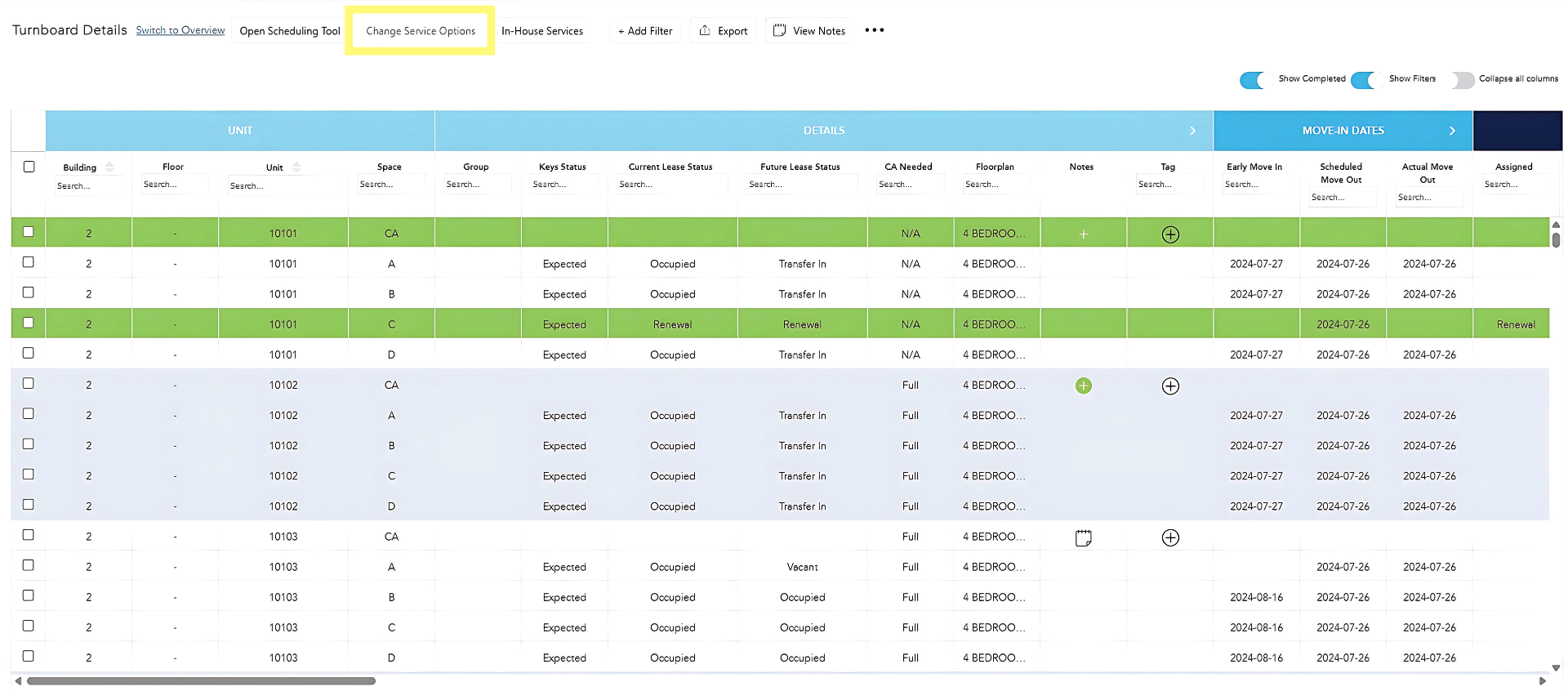
To make changes to the work that needs to be completed in a space based on the imported inspection results, while in Detail View, click on Change Service Options.
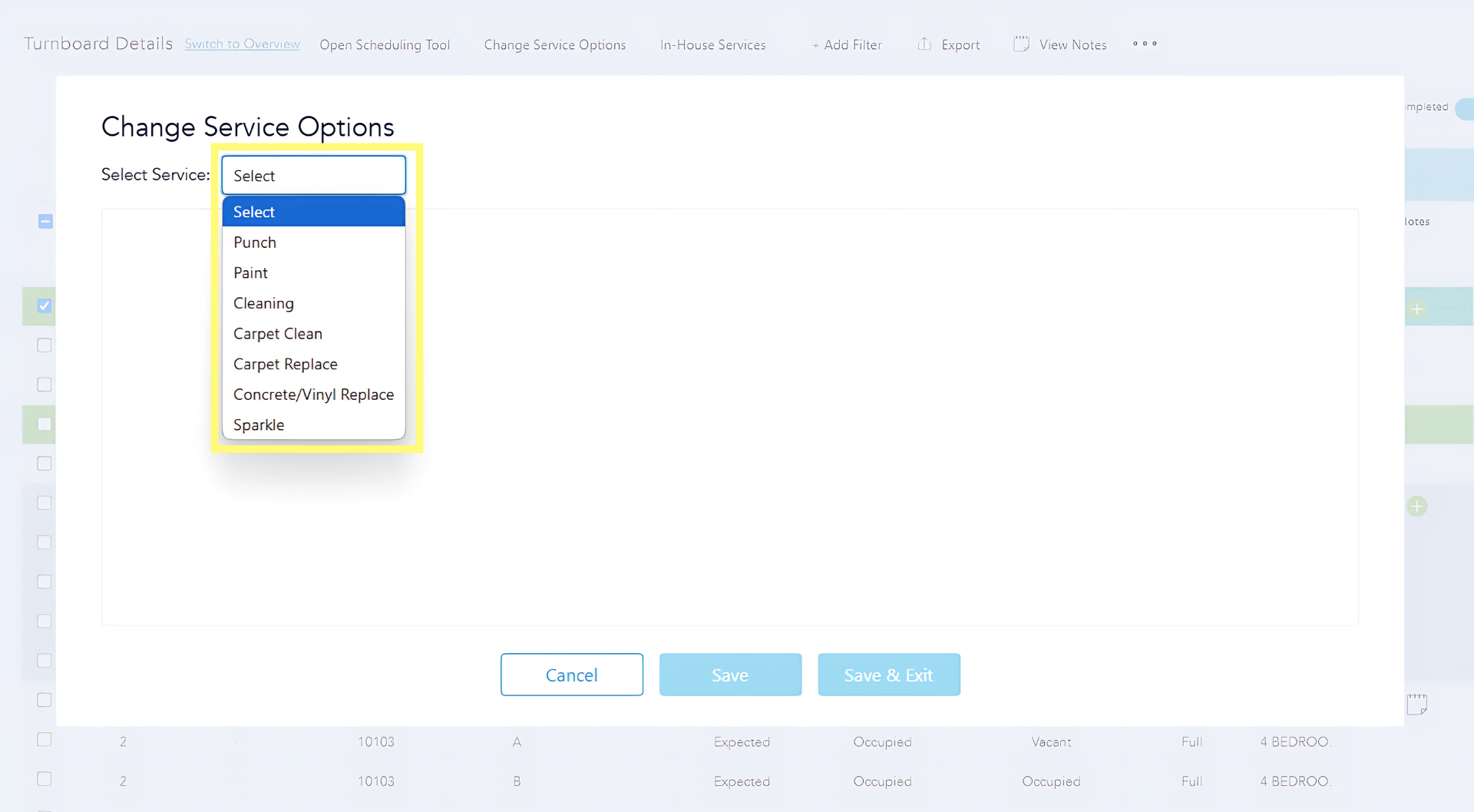
Select the service to be changed.
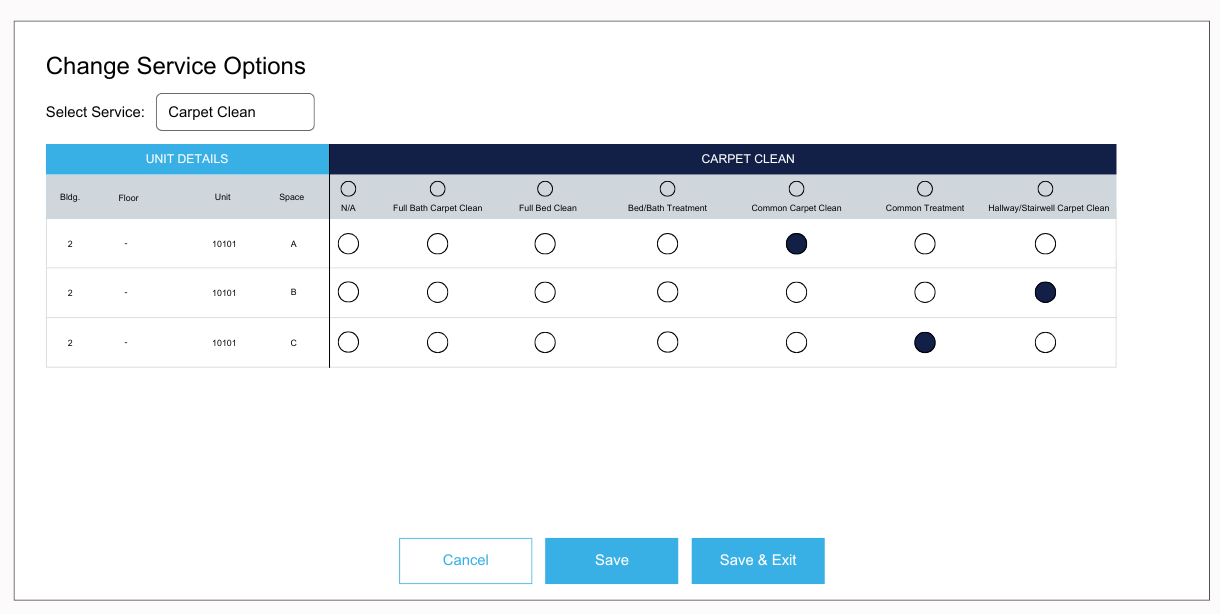
A list displaying all spaces that require the service will appear, with the current work to be completed already filled in. To change the work that should be completed, select N/A, then select the radial button for the service desired for the respective space(s) and click Save to remain in the Change Service Options screen. To make additional changes, select another service option to update from the dropdown menu. Once all updates are completed, select Save and Exit to save your changes and return to the Turnboard.
The work to be completed in the space(s) is now updated on both the Turnboard and the respective service tab.