Keys Return
If you have an integration with a property management system, when residents are marked as moved out in your property management system, that information will sync regularly with Turnable, automatically changing gray keys to green keys. Syncs typically occur every 15 minutes so there is a short delay.
Also, Keys must be returned in order for a unit to transition from Keys to Walk. Once the key is marked as returned, either manually or as part of the PMS move out, it will automatically transition from Keys to Walk. The cadence for this transition from Keys to Walk is "daily" until the scheduled move out date, indicated on under the Dashboard Milestones. After the scheduled move out date the Key to Walk transition will occur every 10 minutes. Please remember to wait for these transitions before viewing units on the Walk tab.
Manual Returns
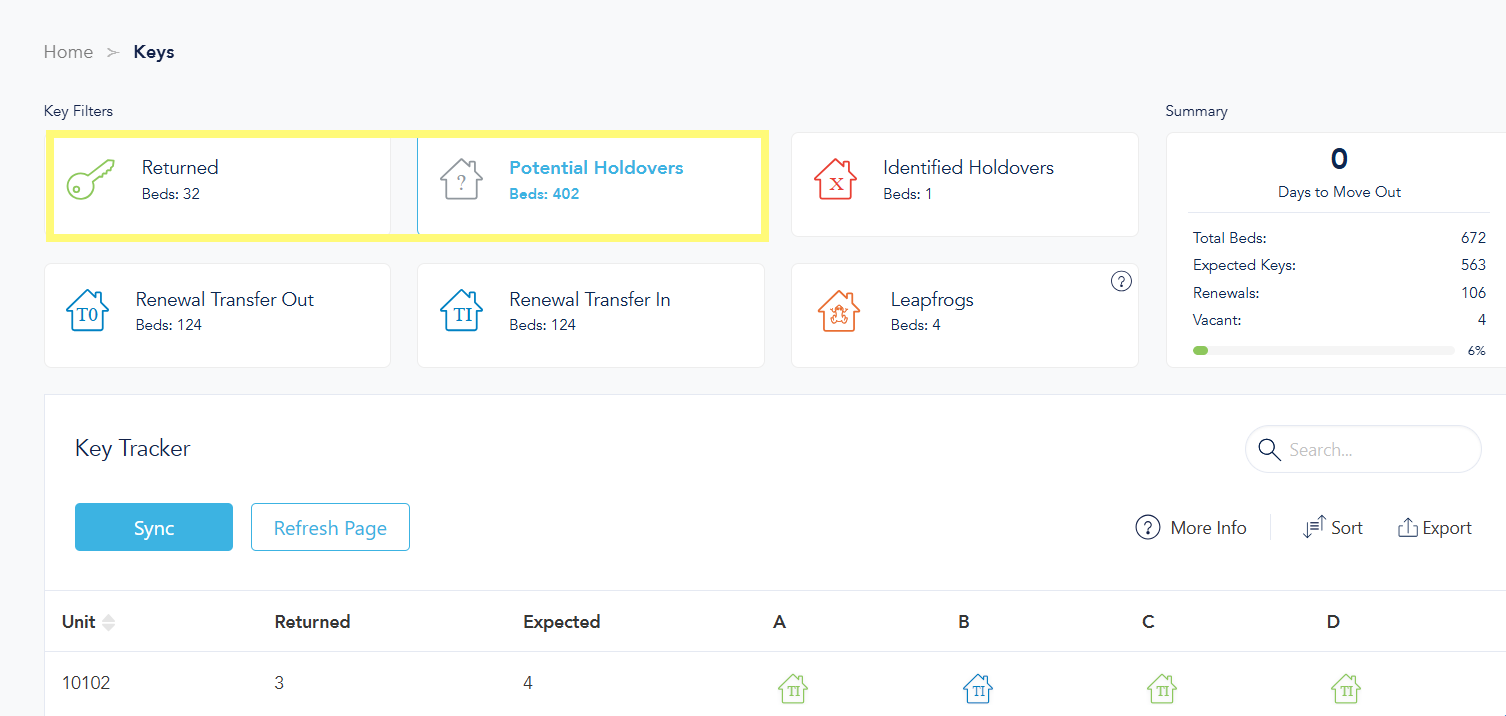
In the Keys tab, click the "Potential Holdovers" filter card to see keys expected to be received.
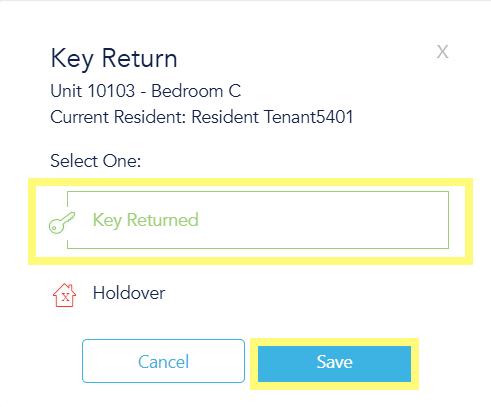
When you are ready to record a resident move out, click the key for the respective unit and space. Select the "Key Returned" option and click the blue "Save" button.
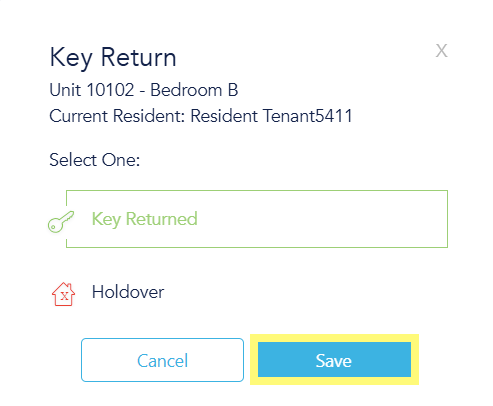
Once ALL expected keys are returned for a unit, that unit will then become available on the Walk tab to assign an inspection.
PMS Sync
If you are integrated with a property management system you may still choose a manual sync. To run a manual sync with the property management system outside of the automatic frequency, click the blue "Sync" button. The timestamp for the last sync will update accordingly. Click "Refresh Page" to display the most up-to-date lease information.
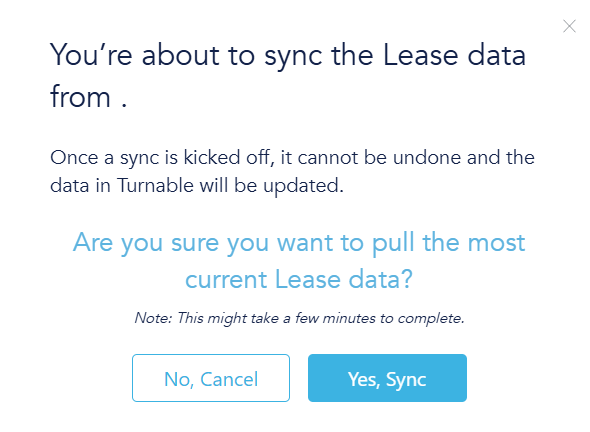
As keys turn green, the filter card data will refresh as well. The "Returned" card will increase by the number of synced move-outs, and the "Potential Holdovers" card will decrease by the same number.
Once ALL expected keys are returned for a unit, that unit will become available on the Walk tab to assign an inspection.
If an error is made and a change is required for the key return status, click the green key icon associated with the respective unit space.
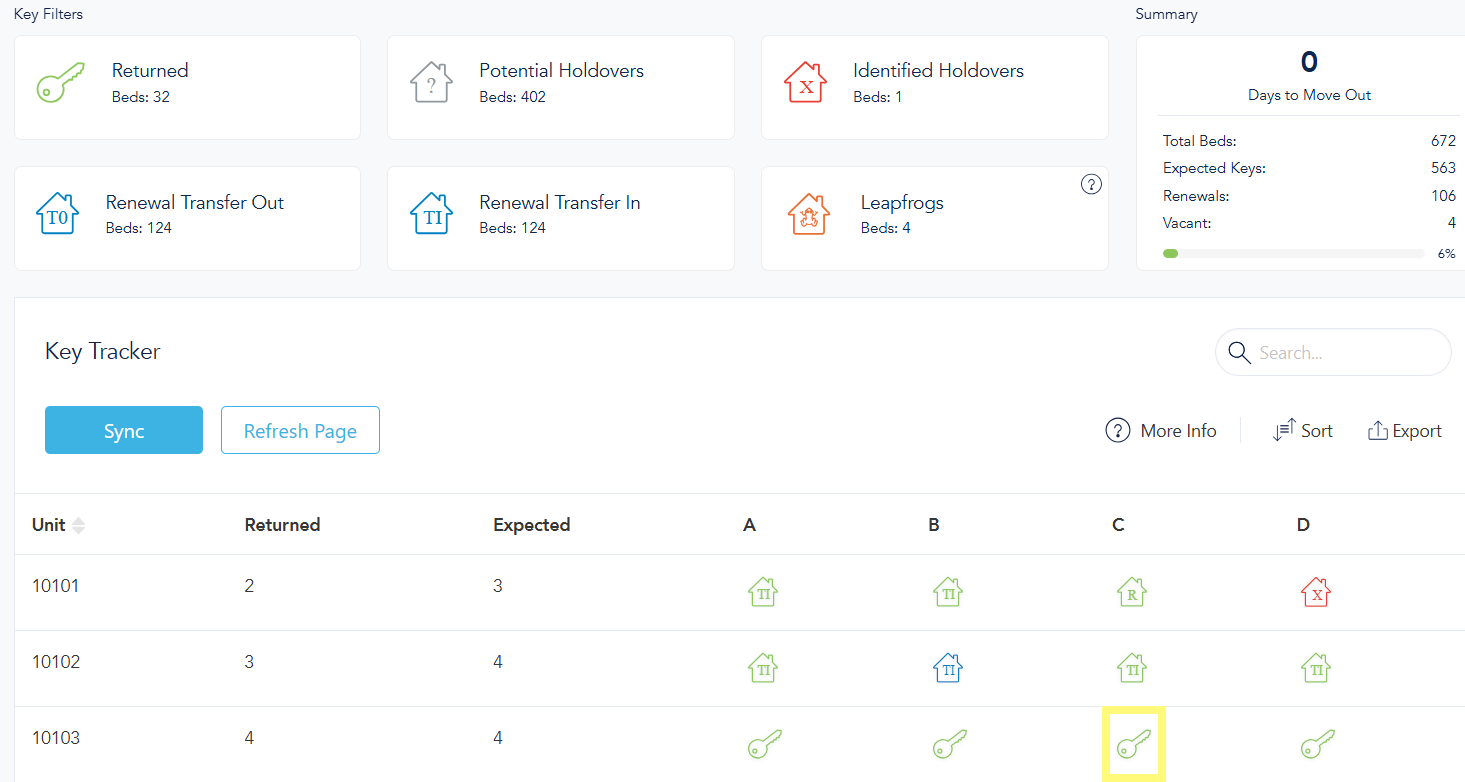
Click "Key Returned" to deselect and undo the key return, then click the blue "Save" button.