
Switch to Overview
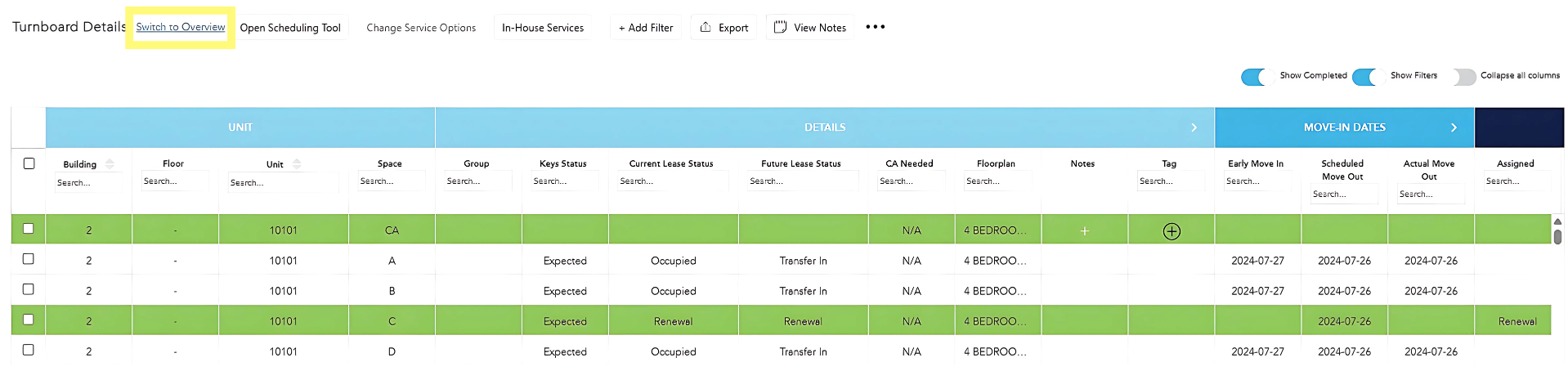
Again, the default view is "Turnboard Details." To see a wider visual of turn progress, click "Switch to Overview."
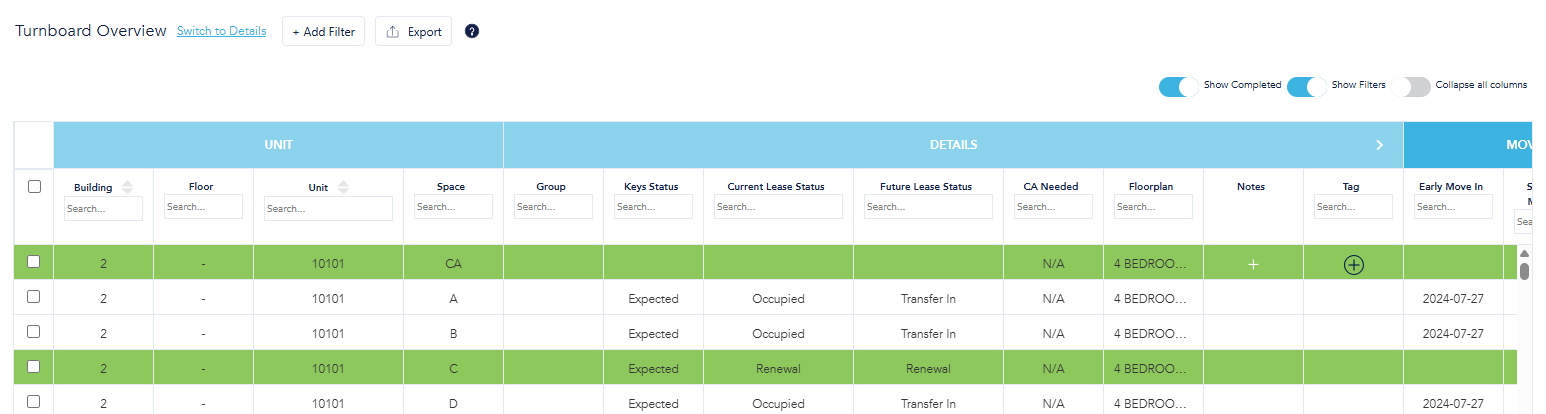
In this view, the first three sections remain the same (Unit, Details, Move-In Dates) followed by a consolidated section for Services displaying status progress for each step in the workflow.
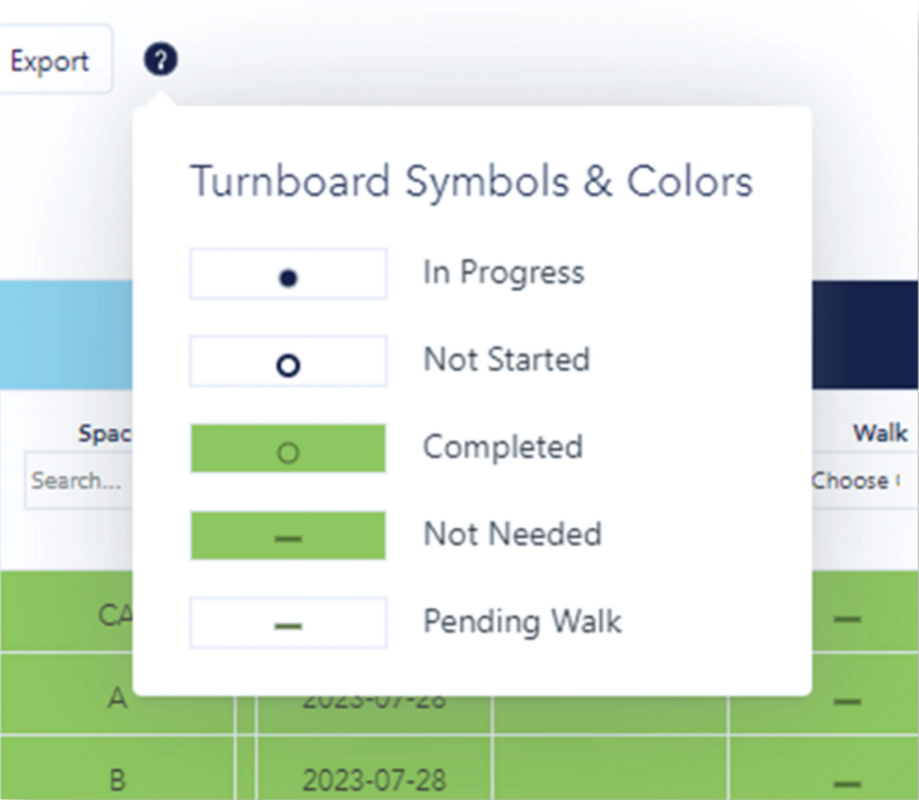
See below for a description of what each symbol/color combination means (hover over the ? icon to view this key.)
Filters
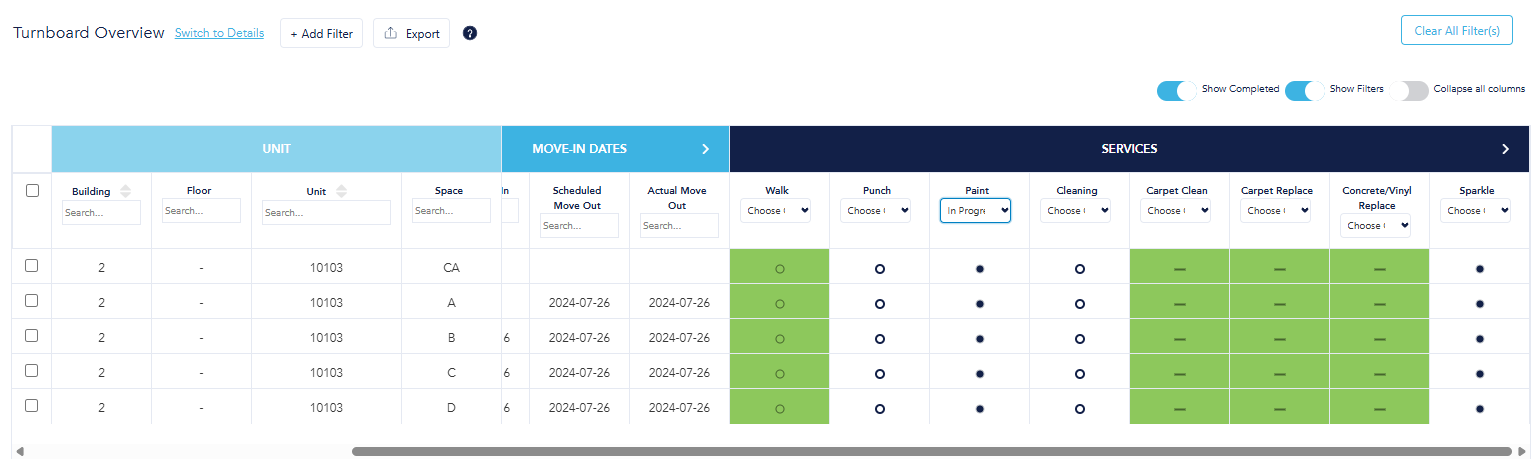
- The default option for the Turnboard Overview is also set to "Show Filters." Toggle it off if you do not want these to show.
- Filters are located under the headers in each section. Filters are dynamic; when you click the filter box, all available filter options for that respective column will be provided.
- Once you have applied at least one filter to the Turnboard, a button will appear in the top right corner to "Clear All Filter(s)." Use this button as needed to return the Turnboard to its original view.
- To view filtered data in Excel, apply desired filters and click the "Export" button at the top of the Turnboard.
To return to the Turnboard detail view, click "Switch to Details."