Detail View
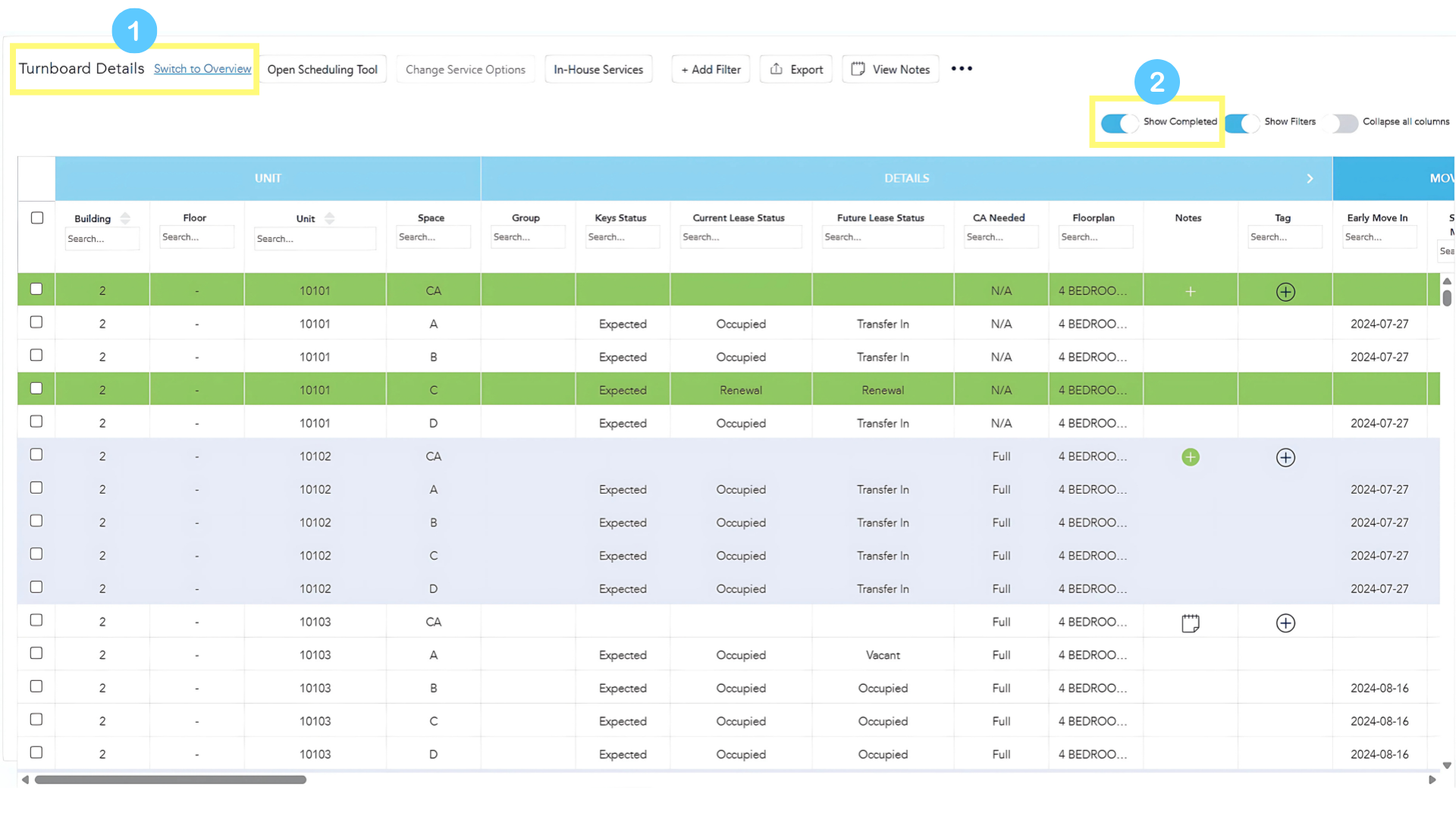
- The default view is "Turnboard Details." In this view, the Turnboard provides detailed information about Unit, Lease Details, Move-In Dates, and all workflow steps from Walk to Sparkle. Scroll from left to right and up and down, as needed, to view the information you are looking for.
- The default option is to show all units on property. To hide units that have been completed through Sparkle, toggle off the "Show Completed" option. The units that remain are all units with remaining work to be completed.
Filters
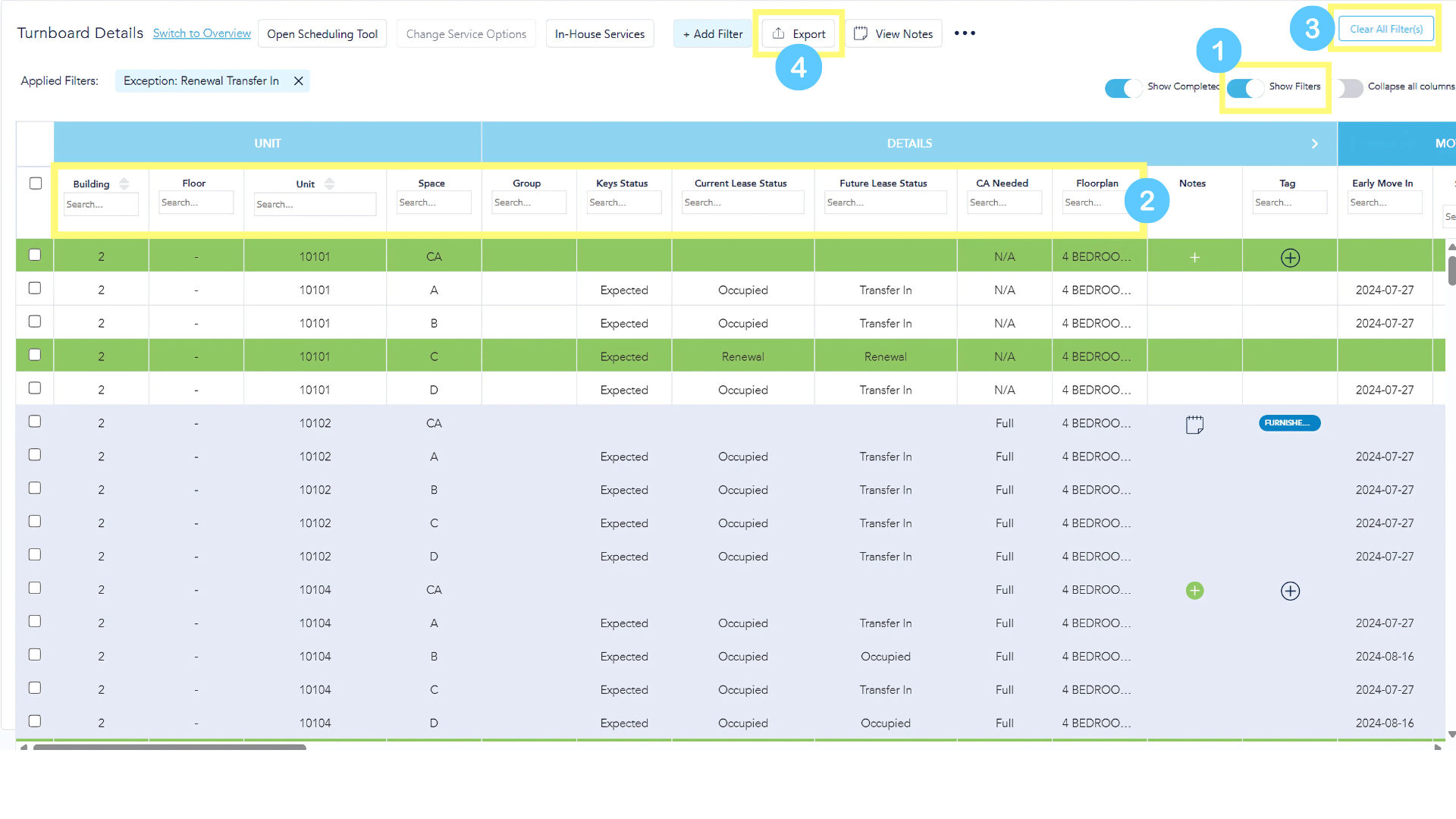
- The default setting for the Turnboard is "Show Filters." Toggle off this option to hide them from view.
- Filters are located under the headers in each section. Filters are dynamic; when you click into the filter box, all available filter options for that respective column are provided. Multiple options can be selected in the filter, and filters can be applied across multiple header columns.
- Once you have applied at least one filter to the Turnboard, a button will appear in the top right corner to "Clear All Filter(s)." Use this button as needed to return the Turnboard to its original view.
- To view filtered data in Excel, apply the desired filters and click the "Export" button at the top of the Turnboard.
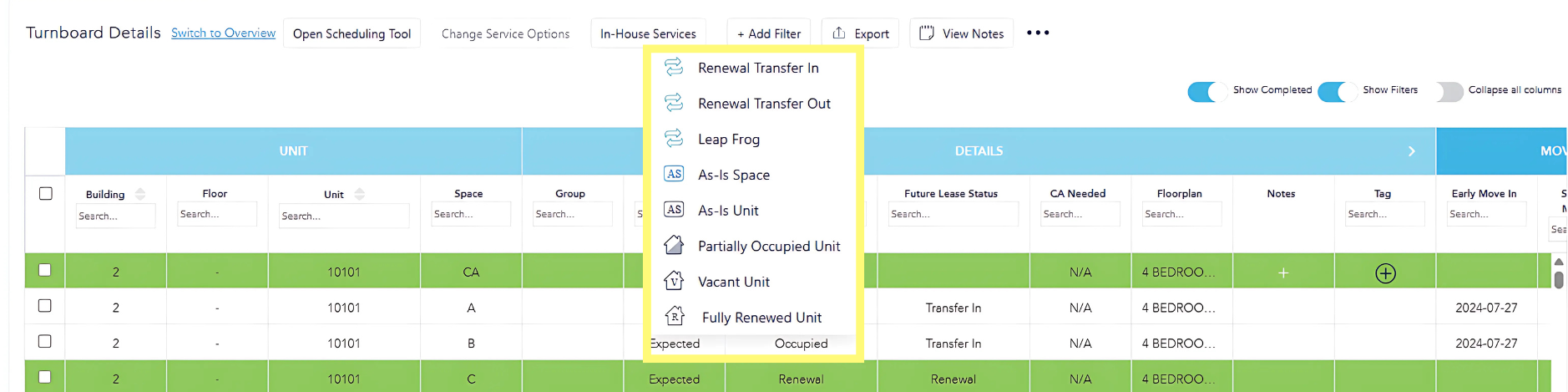
To further filter the Turnboard in addition to the sub-headers under each section, click "+ Add Filter" to view more options.
Notes
Under the "Details" section of the Turnboard, notes may be added for any unit by selecting the unit and then clicking the green + icon under the "Notes" column.
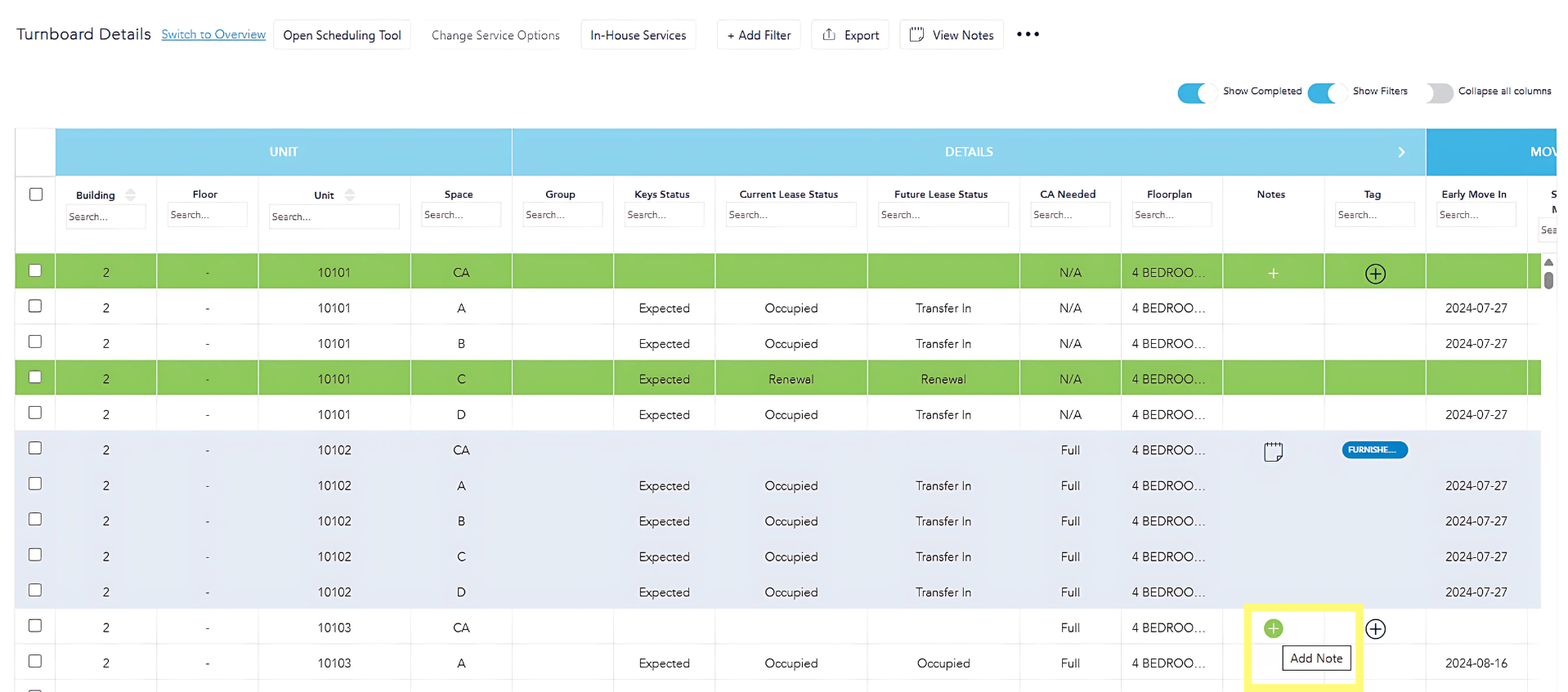
A pop-up will appear to select the note category as well as any additional note details.
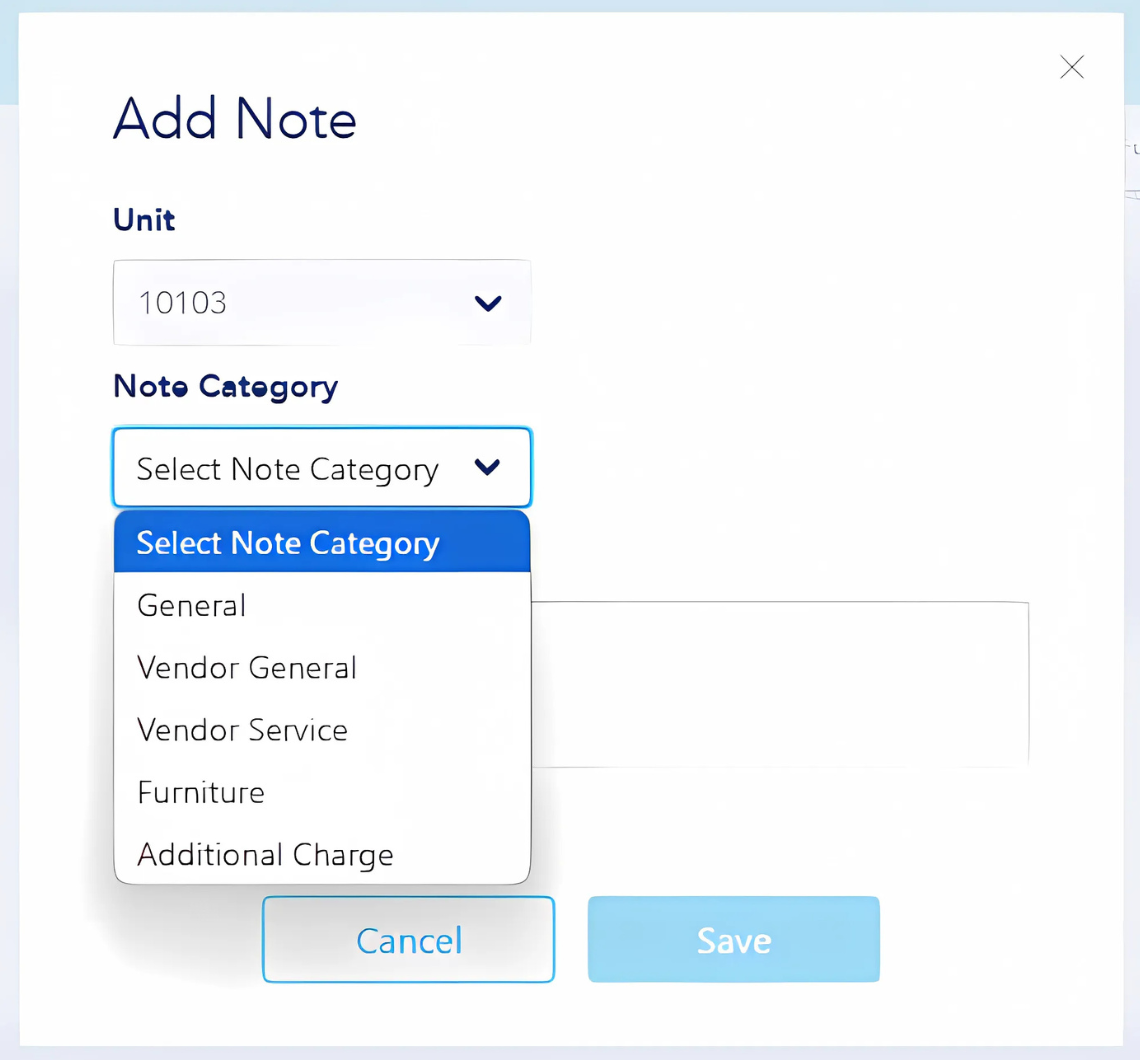
- General: Notes for internal information. These notes are not visible to vendors.
- Vendor General: Notes to be provided to all vendors about a unit.
- Vendor Service: Notes to be provided to vendors for a specific service.
- Furniture: Notes for respective furniture needs in a unit. These notes are for internal use.
- Additional Charge: Notes to track additional charges from prices entered for options in Vendor Setup.
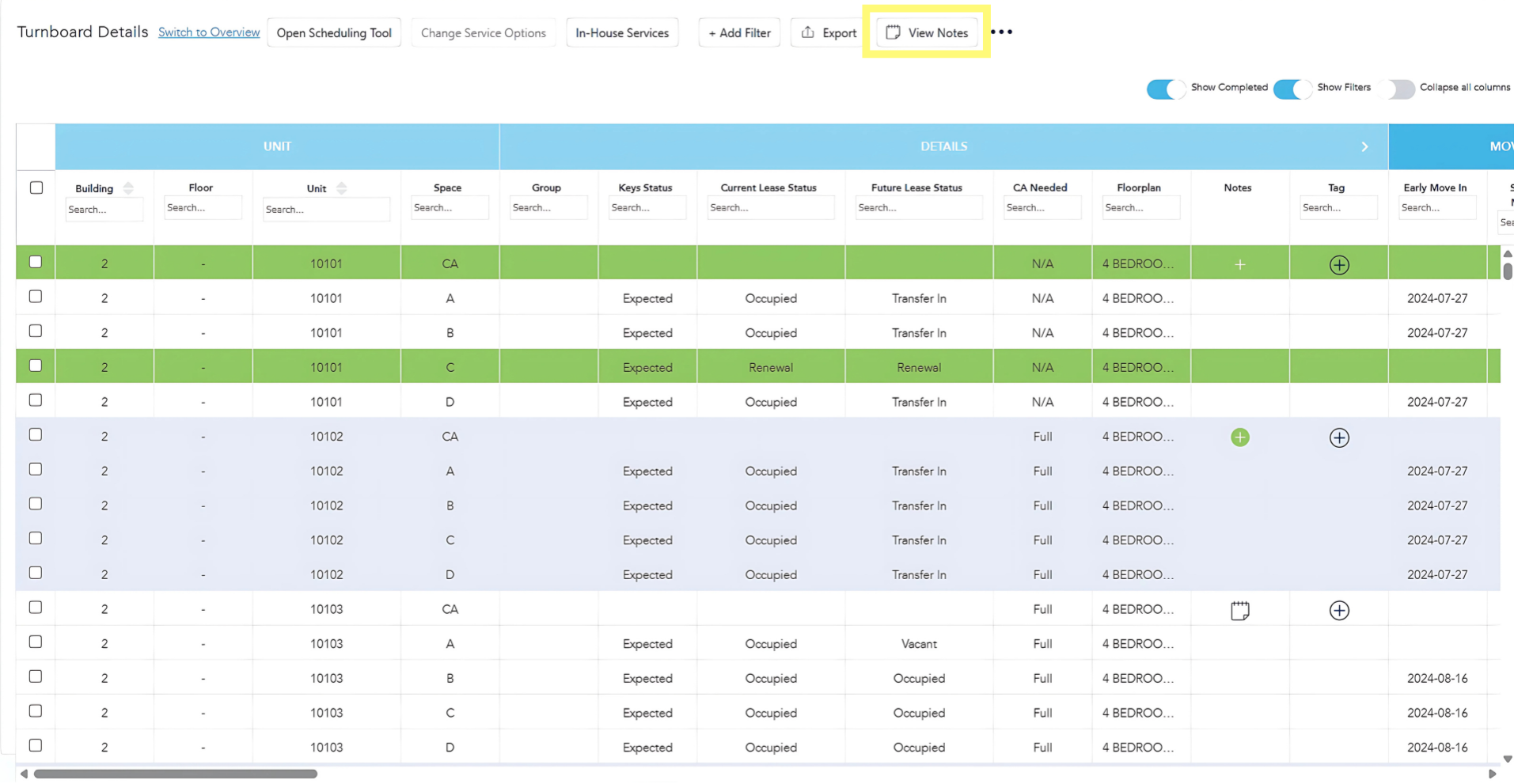
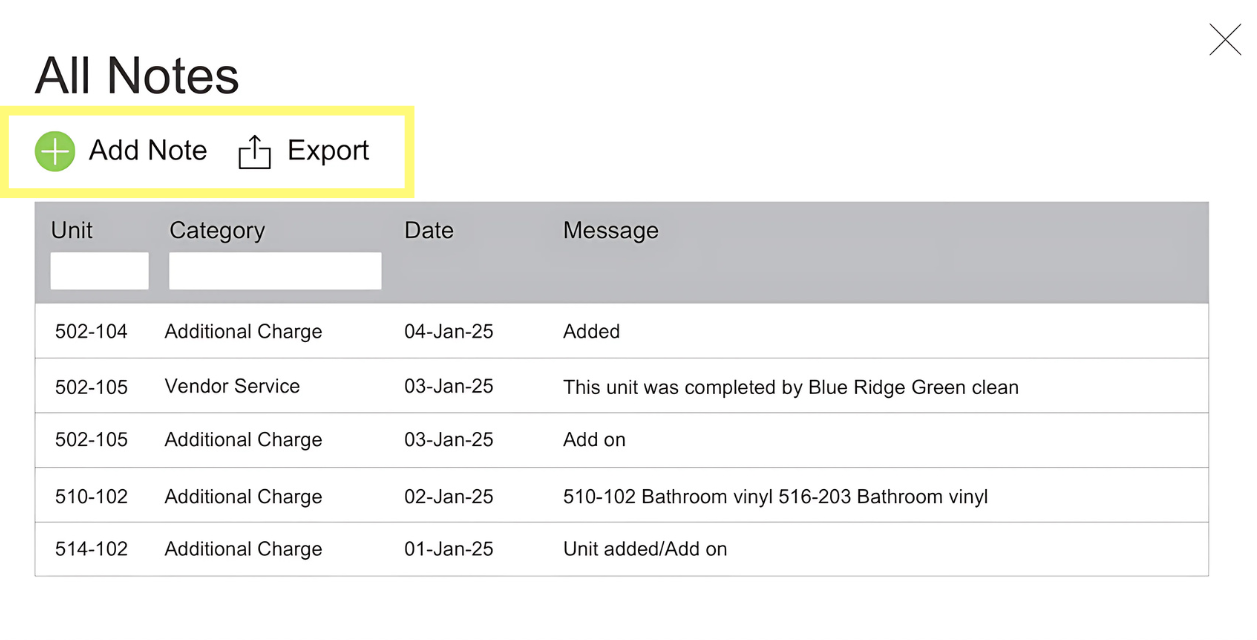
To view all notes, click the "View Notes" button at the top of the Turnboard. A pop-up will appear that lists all notes added to-date. Notes are automatically sorted with new notes at the top of the list.
From this pop-up, a new note can be added or you can export all notes to Excel.
Tags
Under the "Details" section of the Turnboard, tags may be added for any unit by selecting the unit and then clicking the black + icon under the "Tag" column.
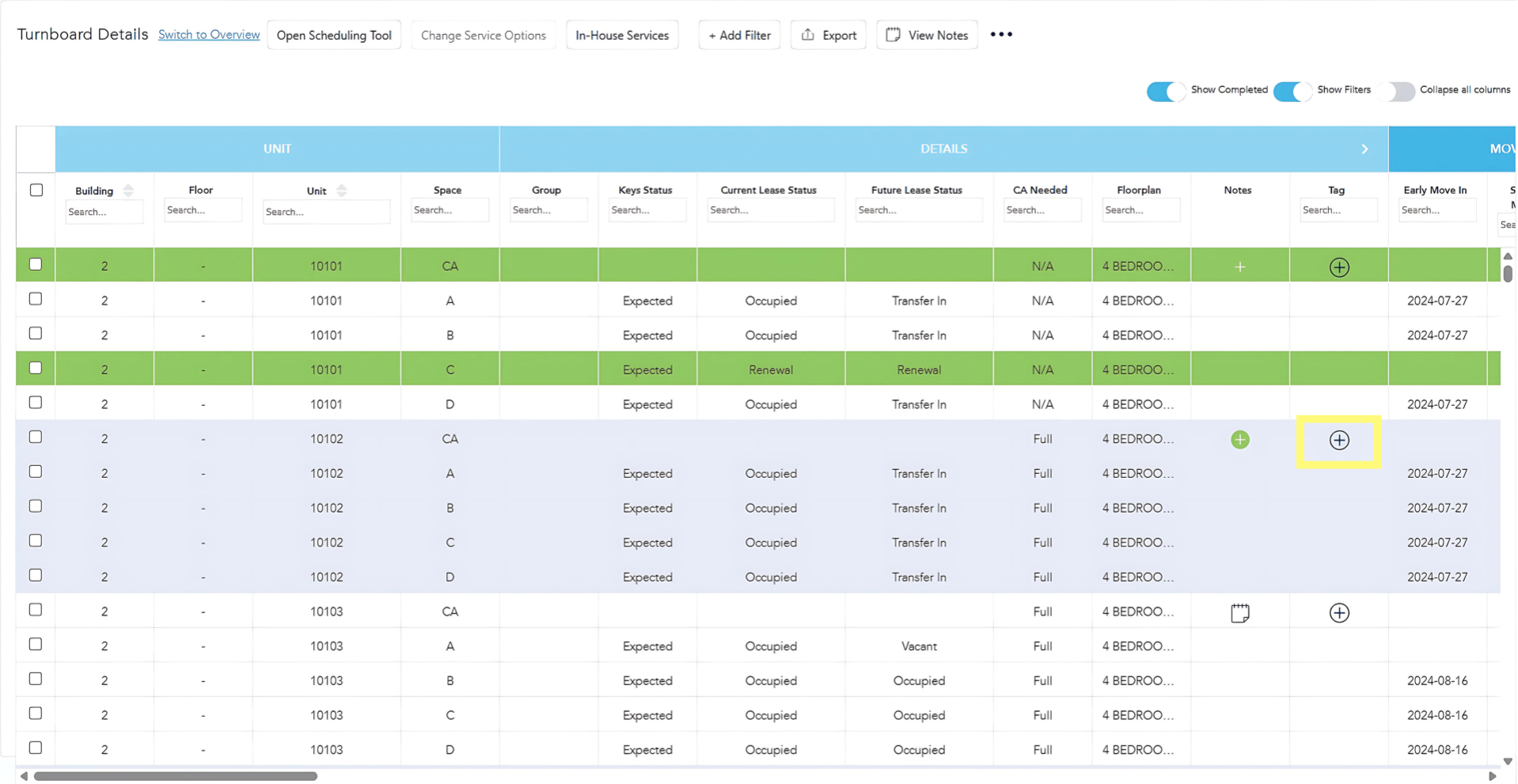
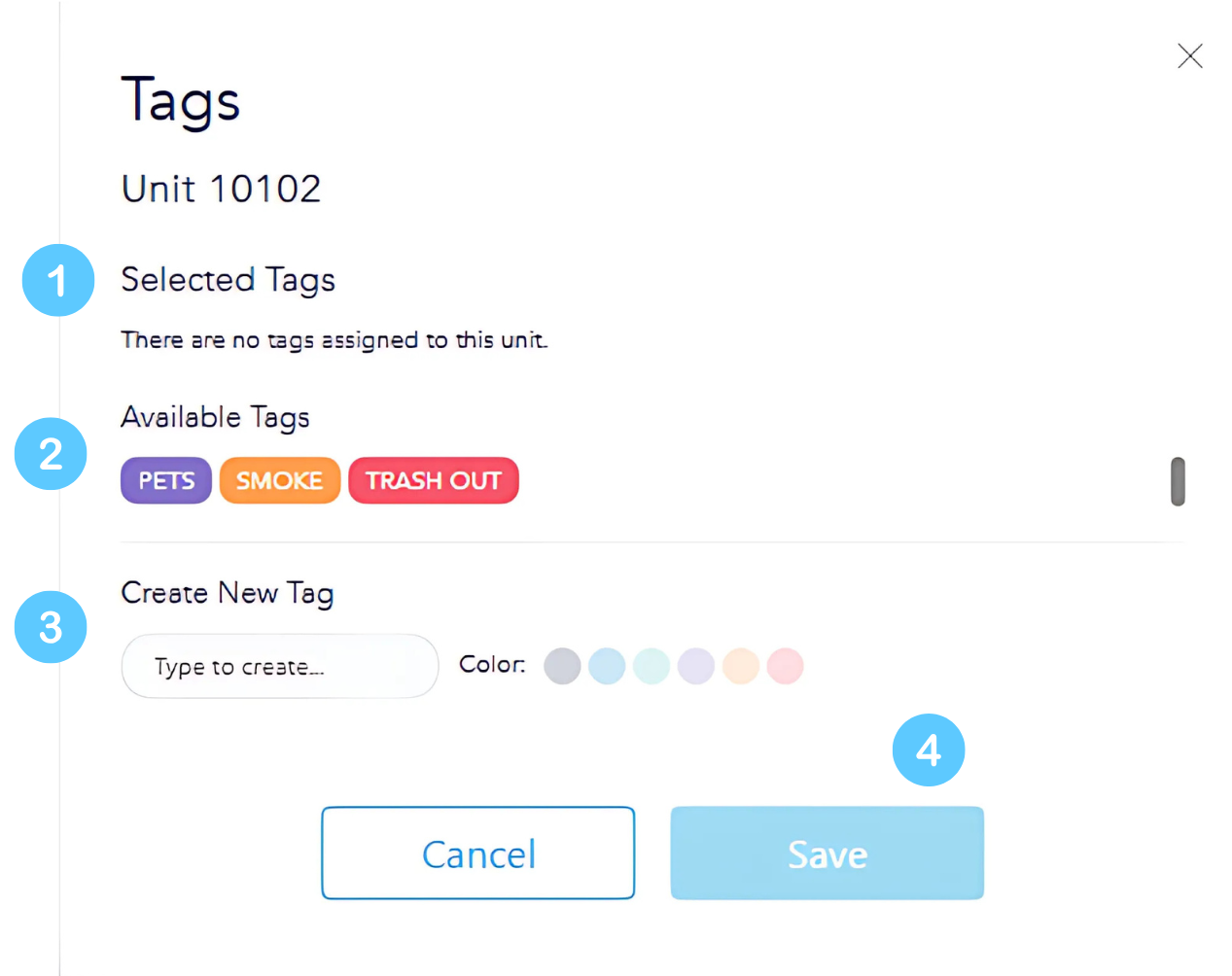
A pop-up will appear providing the following information:
- Selected Tags: List of any tags currently assigned to that unit.
- Available Tags: As tags are created, they will be available to choose from here.
- Create New Tag: Type to create the name of any new tag to be assigned to that unit. Assign a color to the tag. This tag will be assigned to that unit and become available to assign to other units.
- Click "Save."