Walk Dashboard Overview
When it’s time to start inspecting those units, Turnable will be there step by step! Lace up your shoes & get walkin'!
Navigating the Walk Dashboard is simple and intuitive. Easily filter unit data, assign walks to teams, and manage inspections seamlessly. Remember, all data is synced from your lease management system, ensuring accuracy throughout the process. To view the Walk Dashboard, click "Walk" in the left-hand menu and select "Walk" from the drop-down options.
Review the information below to learn how to navigate the different areas of the Walk tab.
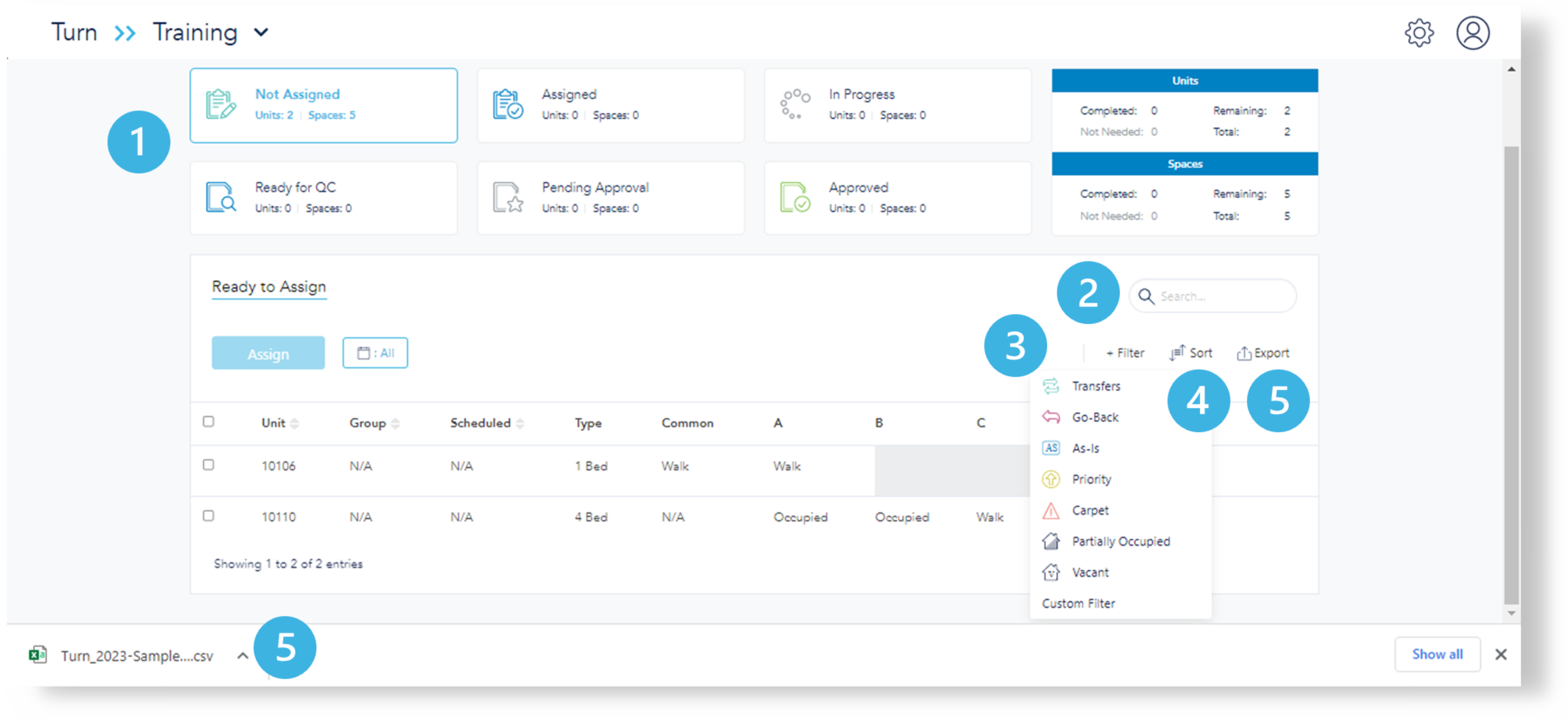
- Each of these filter cards can be clicked to filter unit data.
- Use the search bar to locate a specific unit. This is a big time saver!
- Filter your search by Transfers, Go-back, As-Is, Priority, Carpet, Partially Occupied or by a custom filter using the additional options.
- Sort the data by clicking "Sort" and selecting which column (unit or group) and ascending/descending to further customize the view.
- Export and download lists, as needed.
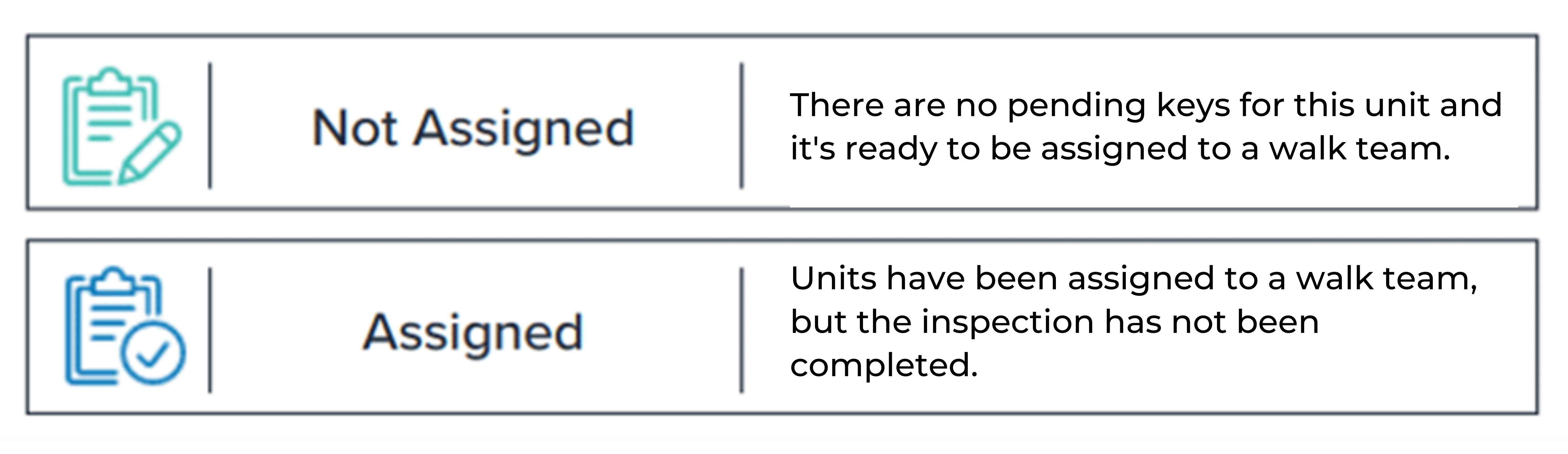
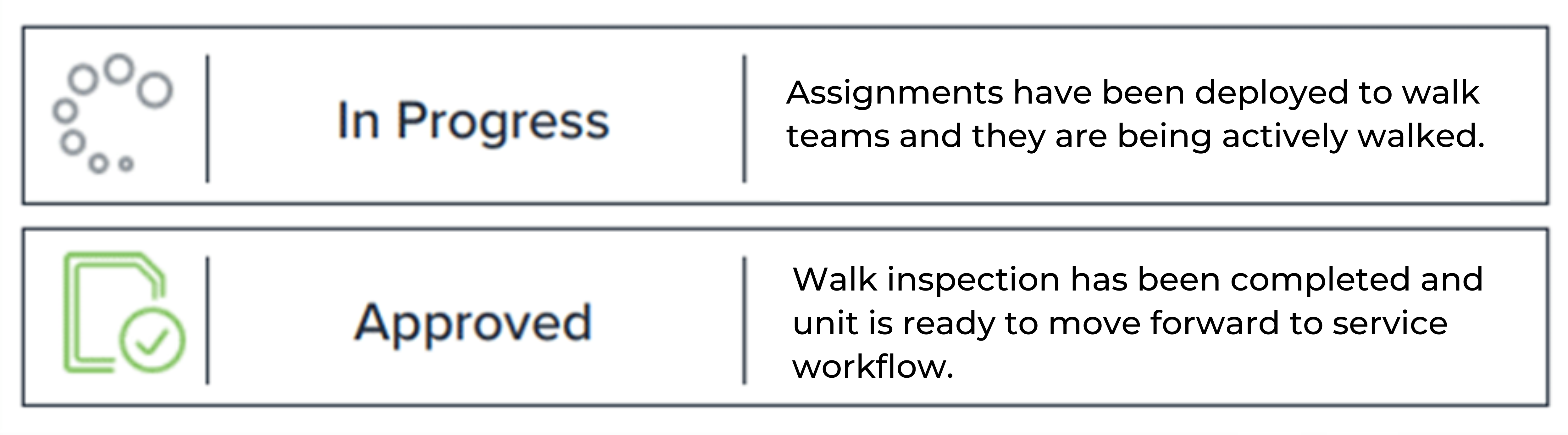
Filter Card Status Guide
Some site leaders prefer to create daily walk assignments the day before the unit(s) will actually be walked. The "Assigned" status differs from the "In Progress" status. This can be helpful as "Assigned" units have not yet been communicated to walk teams.