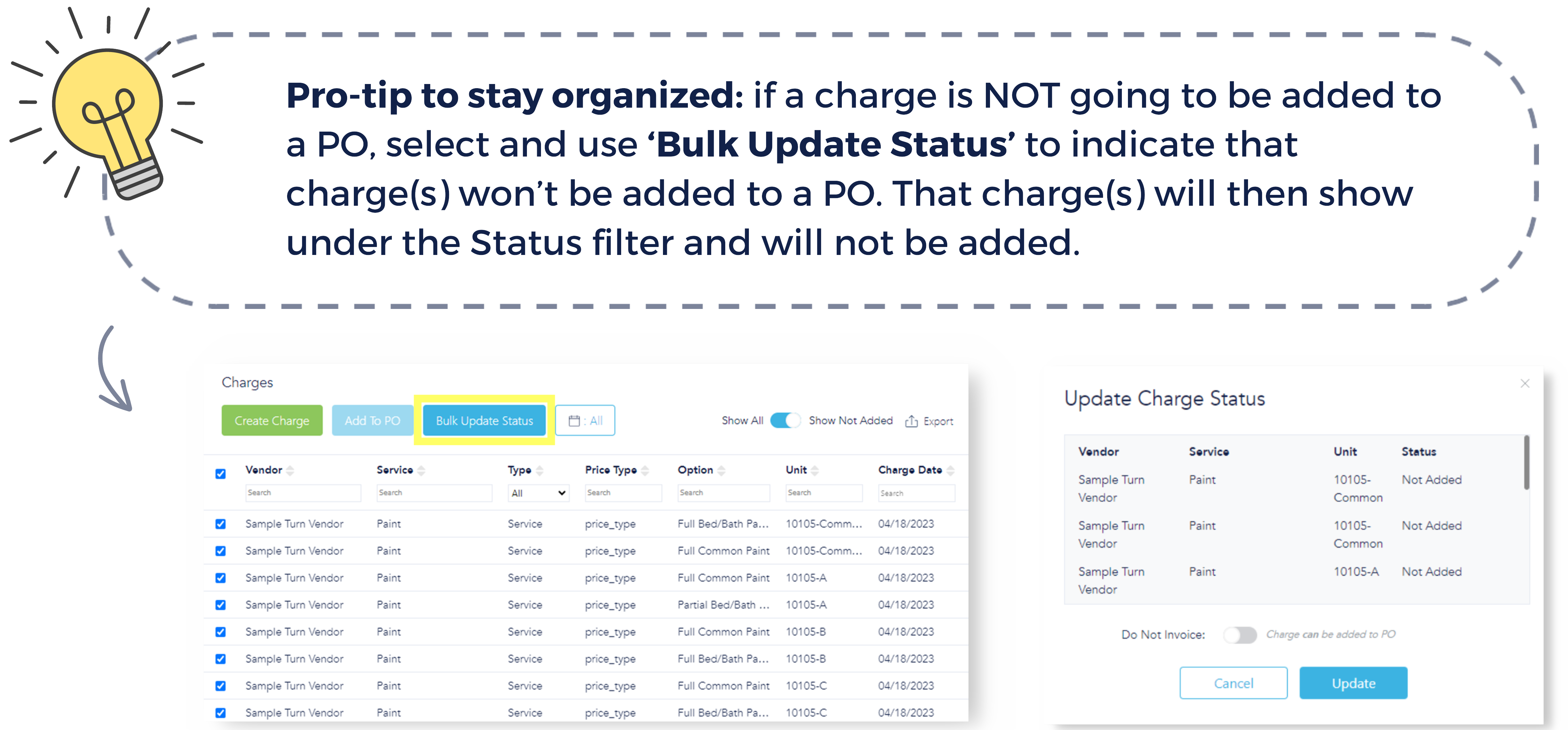
Charges Overview
To view the Charges Dashboard, click "Payables" in the left-hand menu and select "Charges" to view the Charges dashboard.
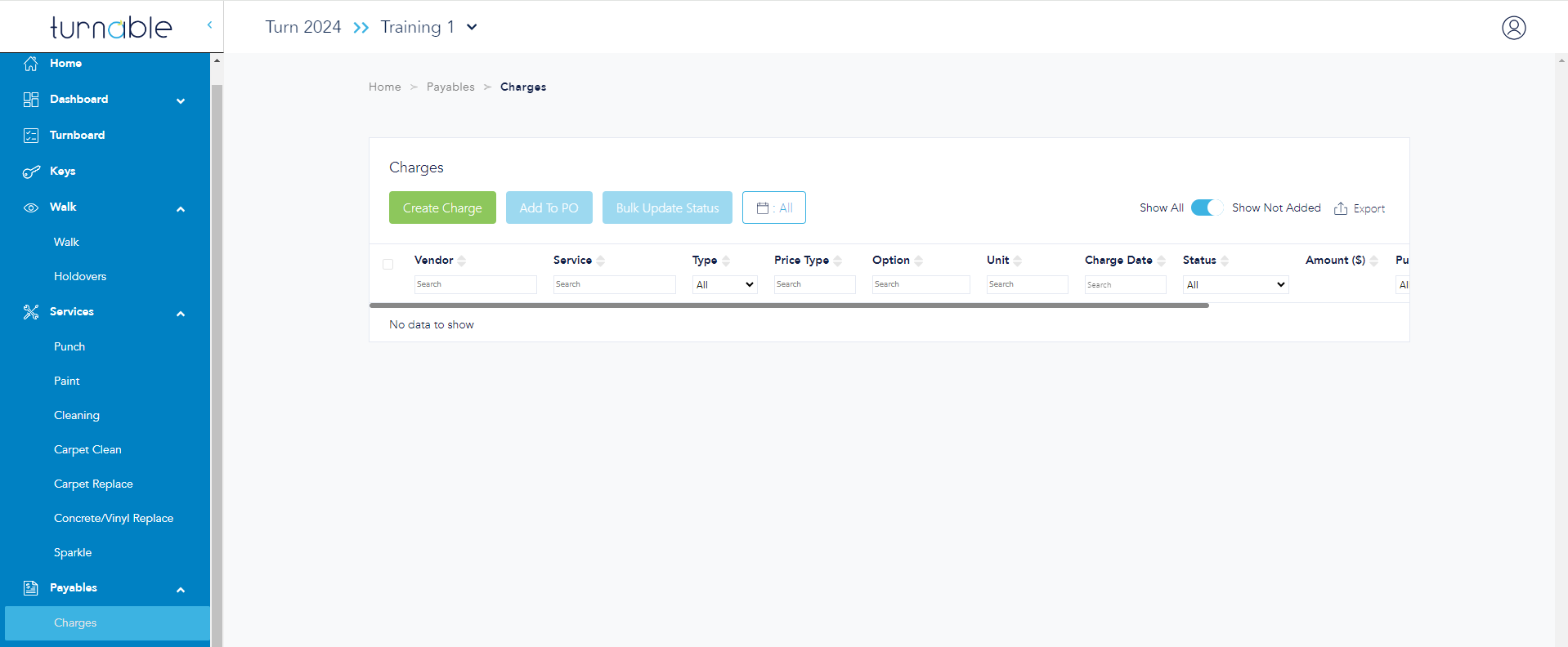
As work is approved on each service, charges will appear here.
- Vendor: Vendor that completed the work.
- Manual Charge: Manually created charge or additional charge.
- Service: Came directly from the service performed.
- Price Type: Unit pricing vs. a la carte pricing.
- Option: Available for service charges only.
- Unit: Location where work was performed.
- Charge Date: Date work was approved.
- Amount: Reflects rate based on price type in vendor setup. (Full unit pricing will only appear in one space in the respective unit.)
- Purchase Order (PO): Reflects PO number if charge has been added to a Purchase Order.
- PO Status: Status of PO processing.
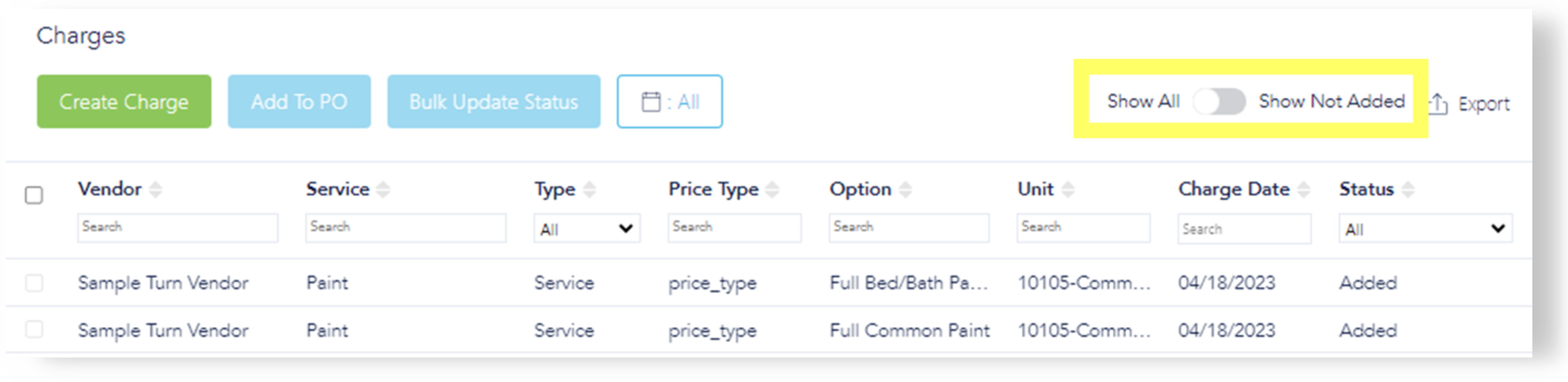
This toggle default setting shows only those charges not yet added to a PO. Toggle again to show everything, including PO number and status.
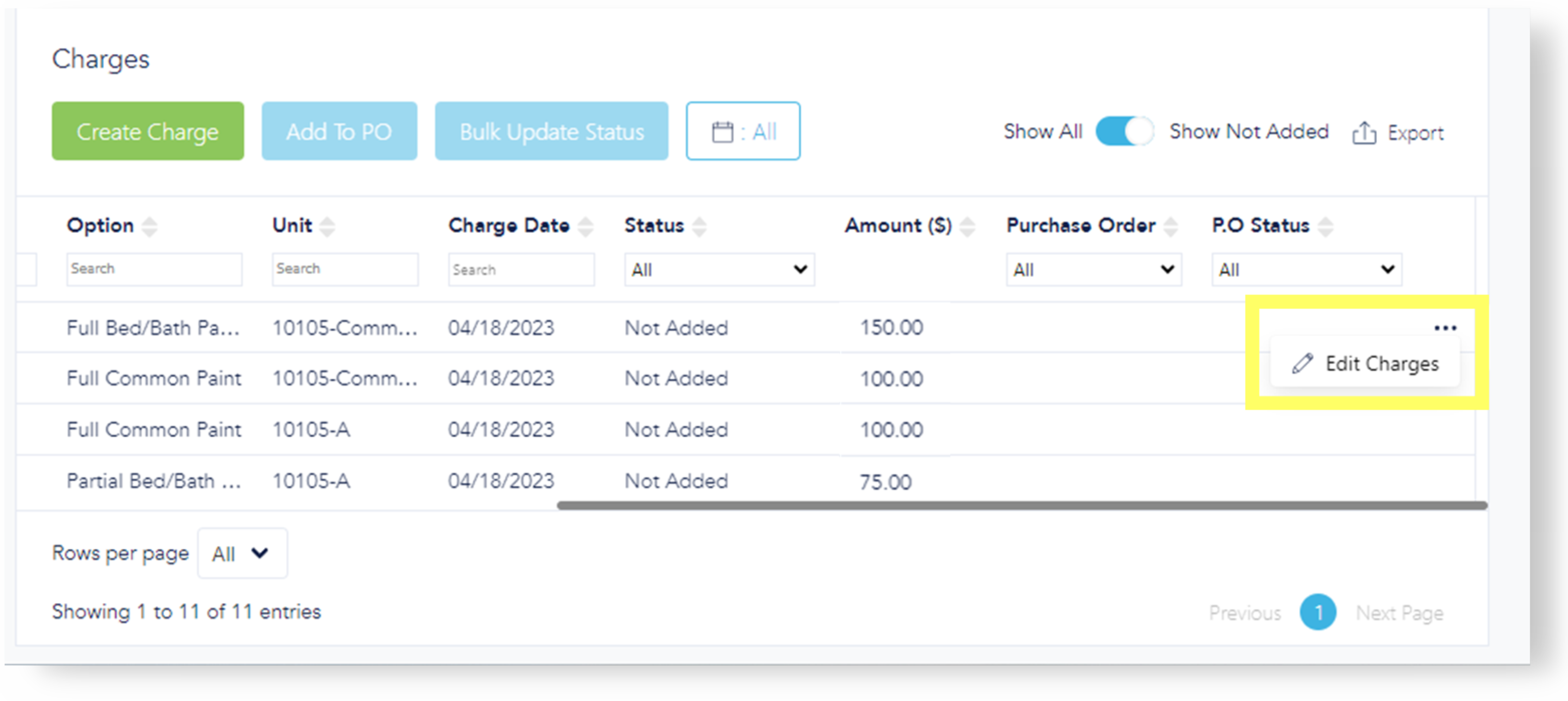
If the price needs to be corrected, click the "three dots" that appear when you hover at the end of the row and edit charges to make changes.